 Mailman
Help menu Read, search & codes
Get your mail in (Sync)
Check mail now, pause or resume, and see what Mailman covers.
Sync checks your email accounts and downloads new mail. It always covers each account's Inbox and Junk folders.
Check for new mail 2 min#
- Open Sync, then select Sync everything now.
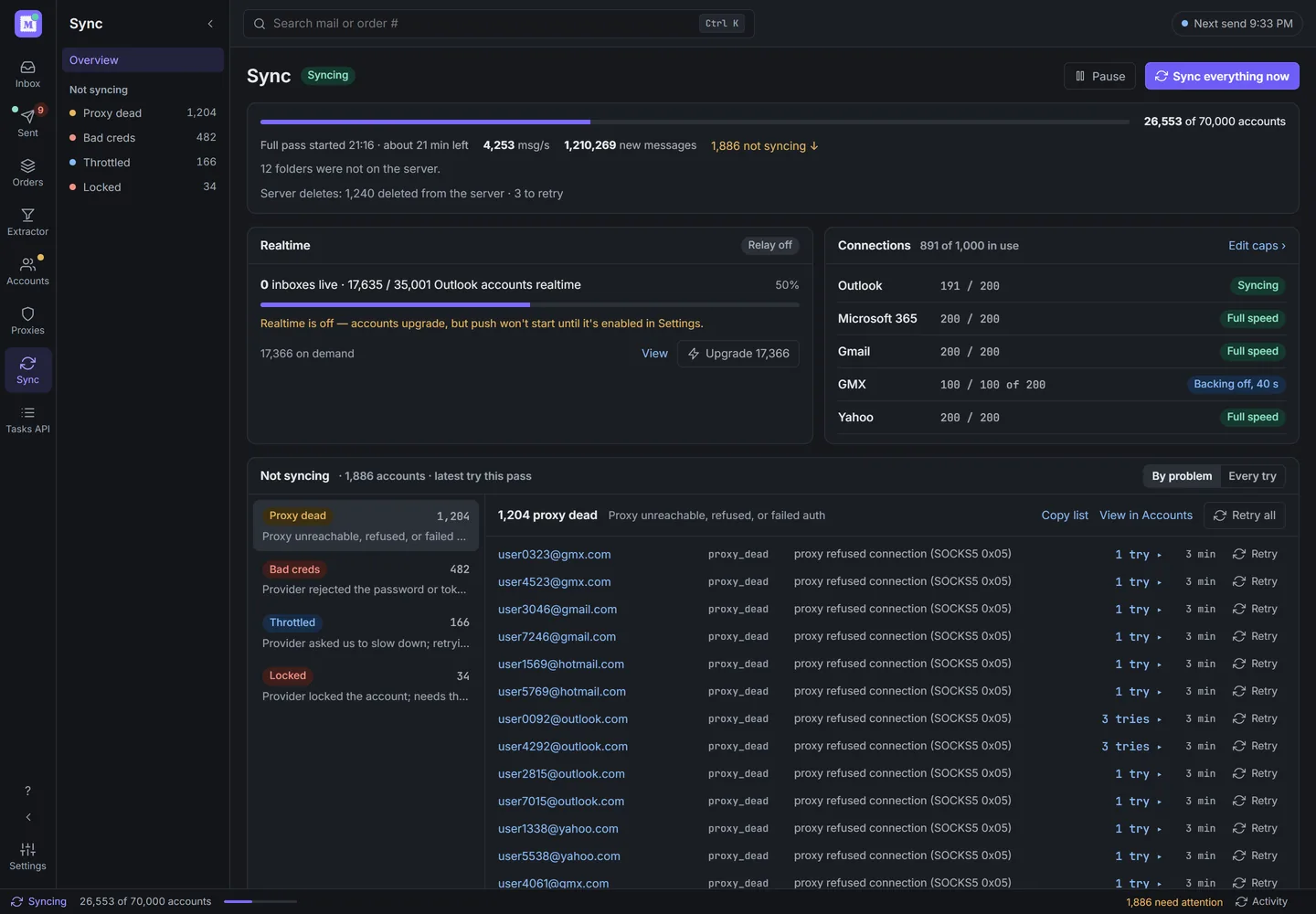
Sync during a pass. Demo data. - Select Pause to stop checking. Accounts already syncing finish first.
- Select Sync everything now again, or Resume in Activity, to continue.

Read the Sync page#
| Card | What it shows |
|---|---|
| Not syncing | Accounts that failed this pass, by problem. Select an account's "tries" to see each attempt, then Retry it or Retry all. |
| Realtime | How many Outlook accounts get mail by push. Upgrade queues browser sign-ins on your computer. "Need to sign in again for realtime" lists accounts to repair. |
| Stay connected | Accounts that keep a connection open for new mail, out of 50, with waiting and error counts. |
| Connections | Open connections and the overall limit, plus open connections and the current limit per provider, with "Full speed" or "Backing off". Edit caps opens Settings → Sync. |
| Recent passes | Past passes. Select a pass to filter its accounts by outcome. |
A provider limit marked "lowered from" was reduced after the provider pushed back. It climbs toward the configured limit as connections succeed. If the overall limit is unavailable, only the open connection count appears.
Follow it in the status bar#
The bar at the bottom shows "Syncing", "Paused" or "Up to date". Select Activity for progress, Pause or Resume, "Classifying", "Restacking", the "Search index" and accounts that failed in the sync pass. On a phone, open More, then Activity. Failures read "N failed this pass" while syncing and "N failed in the last pass" when idle. Only attempted accounts that failed count; accounts skipped because of bad credentials do not. The count stays until the next pass starts. The idle bar shows it once. Select the count while syncing, or Show accounts under "Sync failures" in Activity, to open Accounts showing those accounts and why each failed.
"Recent mail is still becoming searchable" means the mail arrived and search needs a moment.
While you delete mail from the server, Activity shows "Deleting from server" at the top, with progress, each account and Stop all.
Activity lists Running jobs first, with progress and start times when available. Earlier shows outcomes and times. Clear hides finished jobs on this device, including after restarting. Stop tracking stops watching a sync job; syncs already queued still run. Sign-in jobs offer Cancel queued instead.
What Mailman checks#
| Setting | What it does |
|---|---|
| Folders | Inbox and Junk for every account. Other folders are per account, under "Monitored folders" in the account editor. |
| Sync accounts automatically and Start syncing when Mailman opens | Check on a schedule and at launch. Both are off until you turn them on in Settings → Sync. |
| Realtime | Outlook accounts signed in through the browser get mail, Junk included, as it arrives. Other accounts can use Stay connected. |
Failed accounts have a fix in An account won't sync. Outlook accounts can turn on realtime.
A note under the Realtime bar says when a realtime request failed; Mailman retries by itself. Accounts that need to sign in again have their own row.
The line under the sync bar shows accounts finished, new mail in the last minute while running, and new mail this pass. "Finishing the last N accounts" means only slow accounts remain; they can take a few minutes. The Sync sidebar's Account problems link opens Accounts → Needs a fix.