 Mailman
Help menu Web inbox & phone
Use Mailman on your phone
Find the bottom bar, the More menu and selection actions on a small screen.
Works in: App, web inbox & phone3 minUpdated 2026-11-10
Open inbox.getmailman.app on your phone and sign in. Turn on the web inbox on your computer first, and keep Mailman open there.
Get around 2 min#
- Use the bottom bar: Inbox, Orders, Sent, Accounts and More. Inbox returns to the plain Inbox and scrolls to the top.
- Select More for Extractor, Proxies, Sync, Tasks API, Sharing, Settings and Help, which opens this help center. Below them are sync status, Activity and a count of accounts that failed in the sync pass.
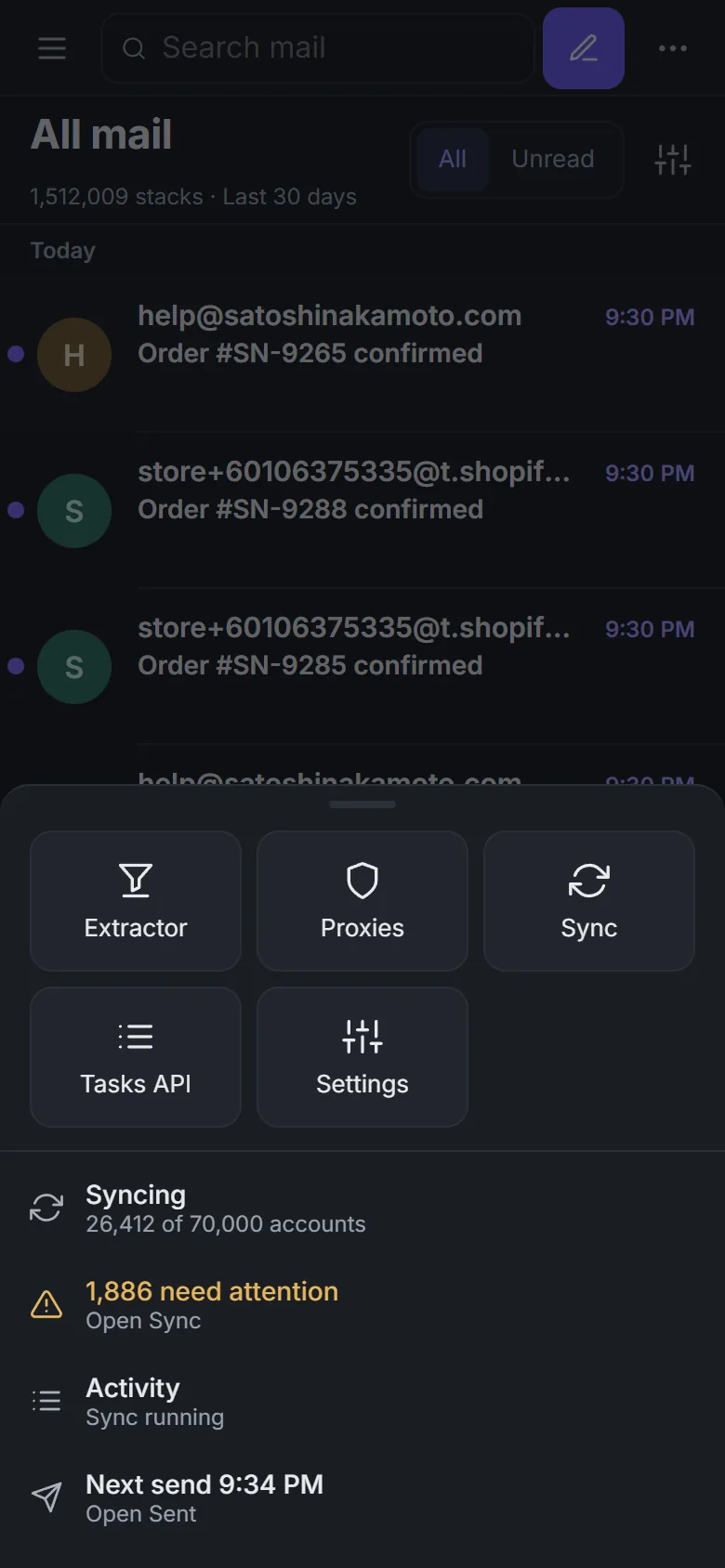
The More menu. Demo data. - Select Folders at the top left for smart views, tags and account groups. Expand a parent group to see its children.
- Tap a stack to open it, then tap a message to read it. Back goes up one step. Each stack row starts with the account, with the subject and any different delivery address below it.
- To select, tap the sender's circle or press and hold. Actions then dock at the bottom, with More for the rest.
- Select the sliders button for "Filter & view": date range, filters, account group and view options.
Press and hold works as a right-click everywhere. Wide tables scroll sideways inside their own area. A downloaded attachment goes through your browser's downloads, and it may ask permission.
Select the count of failed accounts to list exactly those accounts, each with why its sync failed.
Activity shows Running jobs before Earlier jobs. Clear hides finished jobs on this device. See Sync for job outcomes and sync tracking.
Held sideways#
A phone turned sideways is wider than 760 pixels, so it gets the desktop layout with a left rail, adjusted for touch.
- A tap still opens a row, and hover-only actions stay visible.
- In a short window the rail folds. More then holds Extractor, Proxies, Sync, Tasks API and Sharing.
- A crowded toolbar folds into "Filter & view". Selection actions that don't fit move to More.
- A narrow desktop window gets the portrait phone layout.