 Mailman
Help menu Read, search & codes
Read similar emails together (Stacks)
Open a stack, see which account got each email, and tune stacking.
A stack groups similar emails from one sender, such as a shop's order updates. It doesn't merge accounts or remove any email, and its number counts the emails inside.
Open a stack 2 min#
- Open Inbox, then select All mail. If you see single emails, select Stacked.
- Double-click a stack. On a phone, tap it. A single click only selects the row.
Each row shows the account, the address it was delivered to when that is not the account, the subject, the code and the time. Rule and spam stacks also show the sender. Unread dots and bold text show unread mail. On phones the account leads each row.
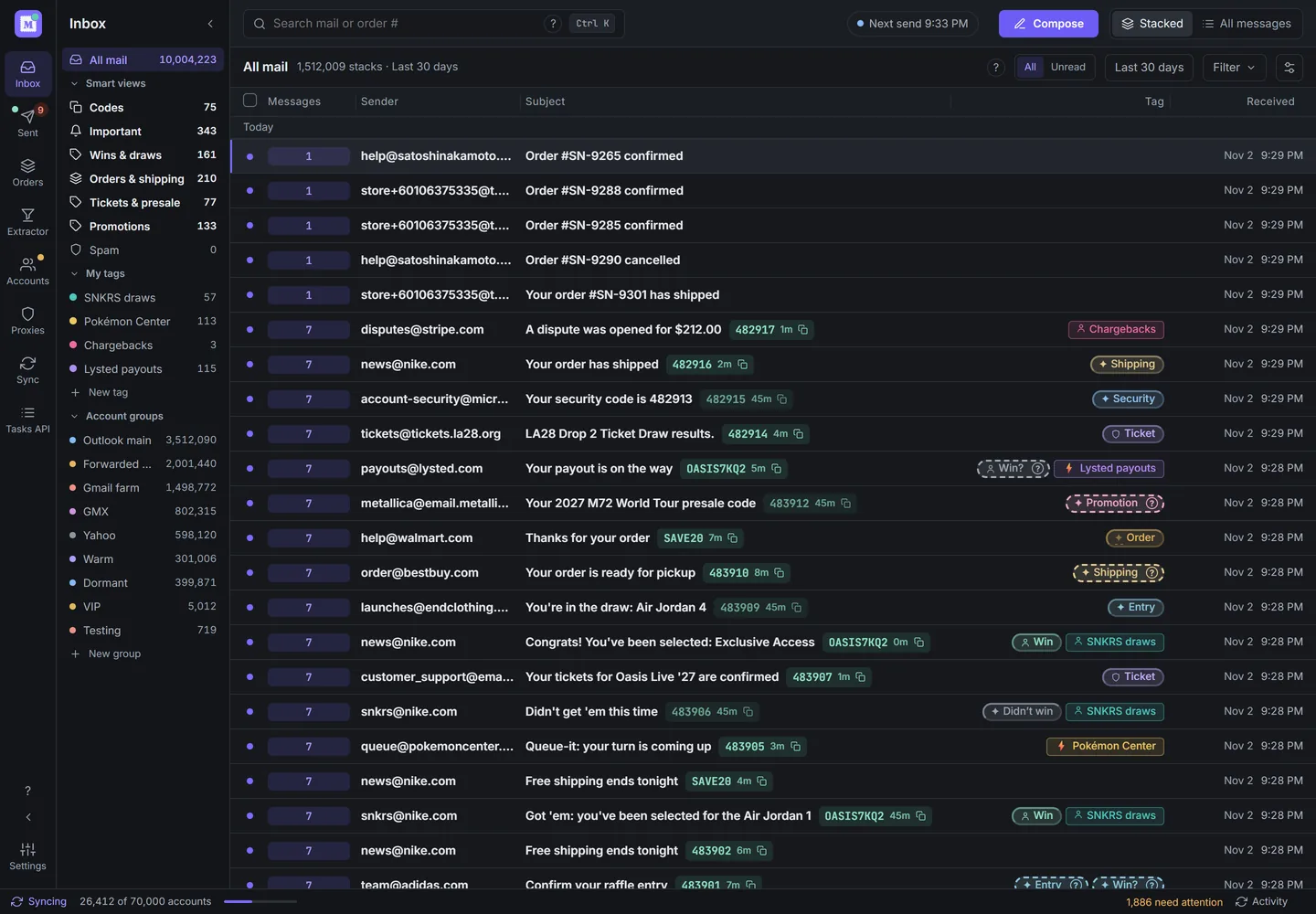
Stacks in the Inbox. Demo data. - Open an email. Press J or K for the next or previous one, and Esc to go back.
- Select All messages to see every email on its own. On a phone, it's under More options.

Change how stacks form#
In Settings → Reading mail:
- Smart stacking groups emails from one sender whose subjects differ by one word, like a name or order number. It also groups subjects that keep the same first and last words around a changing middle, like "Arrived: Your <product> +4 items". It's on by default.
- Phrase stacking also groups subjects that share a phrase of four or more words. It needs Smart stacking and is off until you turn it on.
A new pattern stacks once five emails from the sender with different subjects follow it, however much other mail that sender sends.
Changing either re-sorts your mail in the background, and so do some updates. The status bar shows "Restacking" with a percentage, and a window explains what's happening if it takes more than a moment. You can keep reading and searching; new mail and your changes, like marking read or deleting, appear when it finishes. For groupings you choose yourself, use stack rules.
If a list looks empty#
Select Show all, Clear filters or Show all downloaded mail when the list offers them. If an email is still missing, see An email is missing.
The stack header puts Mark all read before Copy all codes. Code actions appear when the stack has codes. In a cramped header or on a phone, stacks with codes put these actions in the stack menu; stacks without codes show Mark all read directly. With the reader beside the list, Account, Code and Received take priority over secondary columns. The reader position includes the total when an exact count is available.
Spam labels hide in Spam, and Security hides in Codes or beside a code chip. Question labels stay visible. Spam stacks elsewhere dim the count, sender and subject.