Help menu Add & manage accounts Get started All 3 articles Quick start How Mailman works Install Mailman and sign in Add & manage accounts All 9 articles Add a list of email accounts Add one email account Move accounts from AYCD Export accounts to another computer or AYCD Gmail, Yahoo, iCloud and other providers Connect Outlook, Hotmail and Microsoft 365 Use proxies and saved proxy lists Organize, find and repair accounts Work with thousands of accounts Read, search & codes All 7 articles Get your mail in (Sync) Find and copy a verification code Read similar emails together (Stacks) Sort and find mail with smart views Open images, links and attachments Find an email Select, mark, mute, delete and undo Send & forward All 5 articles Write and reply to an email Reply to several emails at once Forward selected emails once Forward mail automatically Resume a draft and check Sent Organize & automate All 6 articles Tags, groups, rules or smart views: which one? Label mail and accounts with tags Sort mail with your own rules Group similar mail into a named stack Collect information from emails Get alerts for packages and mail Orders, tracking & tickets All 7 articles Follow purchases in Orders Merge retailers and items Count items by address Share a recap of your orders Track packages Follow ticket purchases, sales and payouts Fix a missing or incorrect order or ticket Web inbox & phone All 2 articles Open your inbox in a browser Use Mailman on your phone Backup, updates & tools All 5 articles Back up Mailman and move computers Update Mailman Let your tools collect codes and links Share read-only mail with a puller, a bot or a buyer Connect scripts and assistants Fix a problem All 7 articles Fix a problem An account won't sync An email is missing Sign-in, license and machine-slot problems The web inbox or phone won't connect An email didn't send, or I'm not sure it did Contact support and send logs Reference All 6 articles Keyboard shortcuts Settings reference Account import formats Glossary Frequently asked questions What's new All articles Help › Add & manage accounts › Add a list of email accounts Add a list of email accounts Paste or open a list, check the preview, and import it safely.
5 min Updated 2026-11-02
Import many email accounts at once from a pasted list or a file. Mailman shows a preview before it saves anything. It connects inboxes you already own; it doesn't create addresses or buy proxies.
Before you start Open one account on its provider's website. Clear any lock or security check there first. Get the provider's app password if it needs one. A code sent to your phone isn't one. Try two or three accounts before your whole list, and keep a private copy of it. Read the list 2 min #
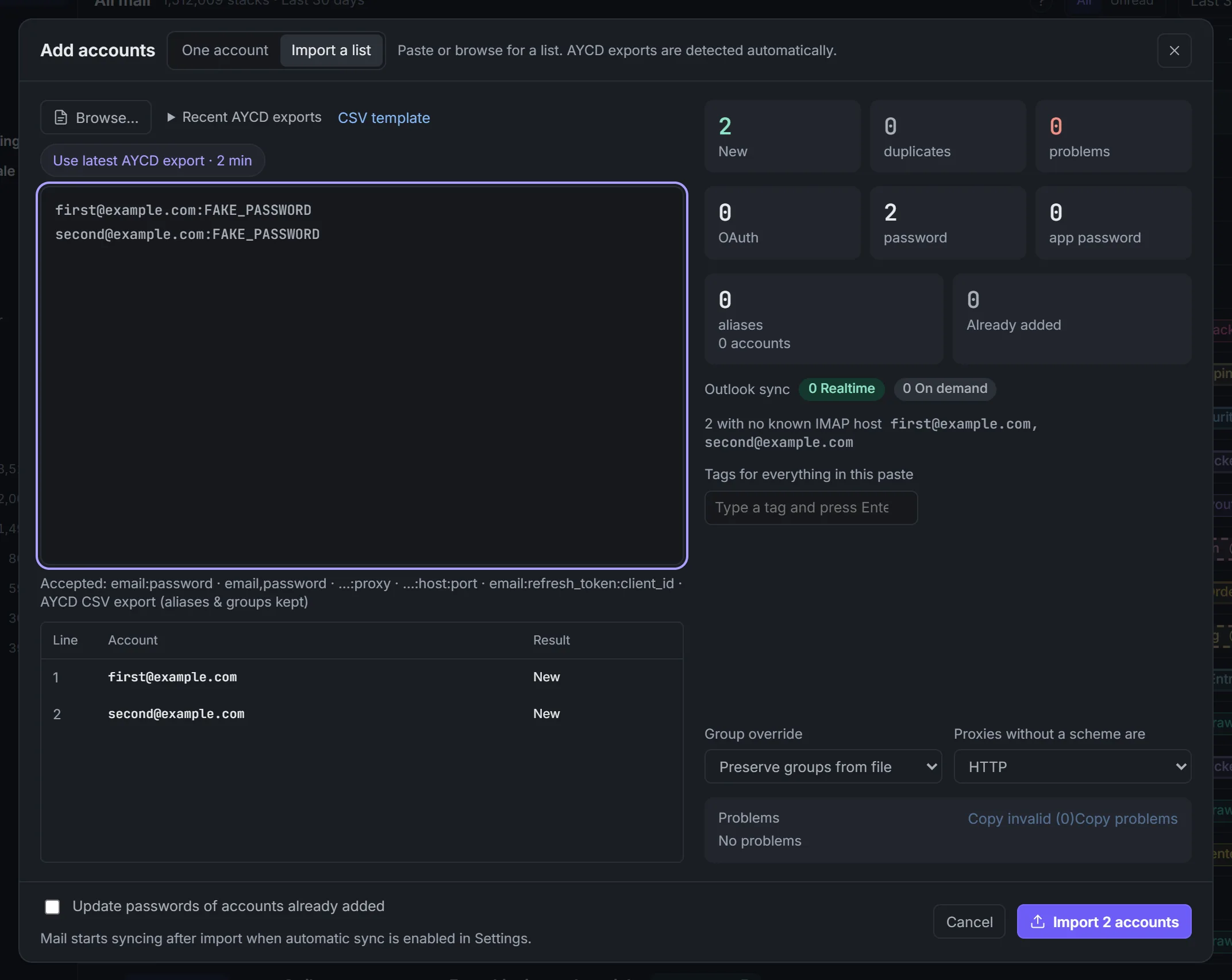
In Accounts , select Add accounts . The dialog opens on Import a list . Paste into Accounts to import , or select Browse… and pick a .csv or .txt file. Read the preview: counts for "New", "duplicates", "problems" and "Already added", and a result for each line.The import preview. Demo data. For problems, select Copy problems for the reasons or Copy invalid for the bad lines. Fix them in your list. Both can hold private details. Set the options 1 min #
Under Group override , keep Preserve groups from file , or pick a group for every account in this import. If your list has proxies without a scheme, set Proxies without a scheme are to your supplier's type. Leave Update passwords of accounts already added off unless you mean to replace saved passwords or tokens. Import 1 min #
Select Import 3 accounts . The button shows your count. Select Done . Mail syncs after the import only if Sync accounts automatically is on in Settings → Sync . Otherwise open Sync and select Sync everything now . Outlook accounts may offer Connect Outlook for instant updates ; see Outlook .
If something went wrong#
You see Do this "Only .csv and .txt files can be imported" Save the list as a text or CSV file. Renaming a spreadsheet doesn't convert it "Could not read that file" or "Could not read this list" Make sure the file opens, then paste a few lines to test "Import failed" or "Nothing to import" Fix the lines the preview flags, then import again "Could not start syncing" Your accounts are saved. Open Sync and don't import again
What's next Next Add one email account Mailman