 Mailman
Help menu Send & forward
Write and reply to an email
Send a new email or a reply, within the limits, from the right account.
Compose sends plain-text email from any account Mailman can send from. A reply goes out from the account that received the original.
Send an email 3 min#
- Select Compose, or open a message and select Reply.
- Check the sending account. If it has aliases, choose From.
- Enter To, Subject and your message. Select Cc / Bcc to add copies.
- To attach files, select Attach files.
- Select Send.
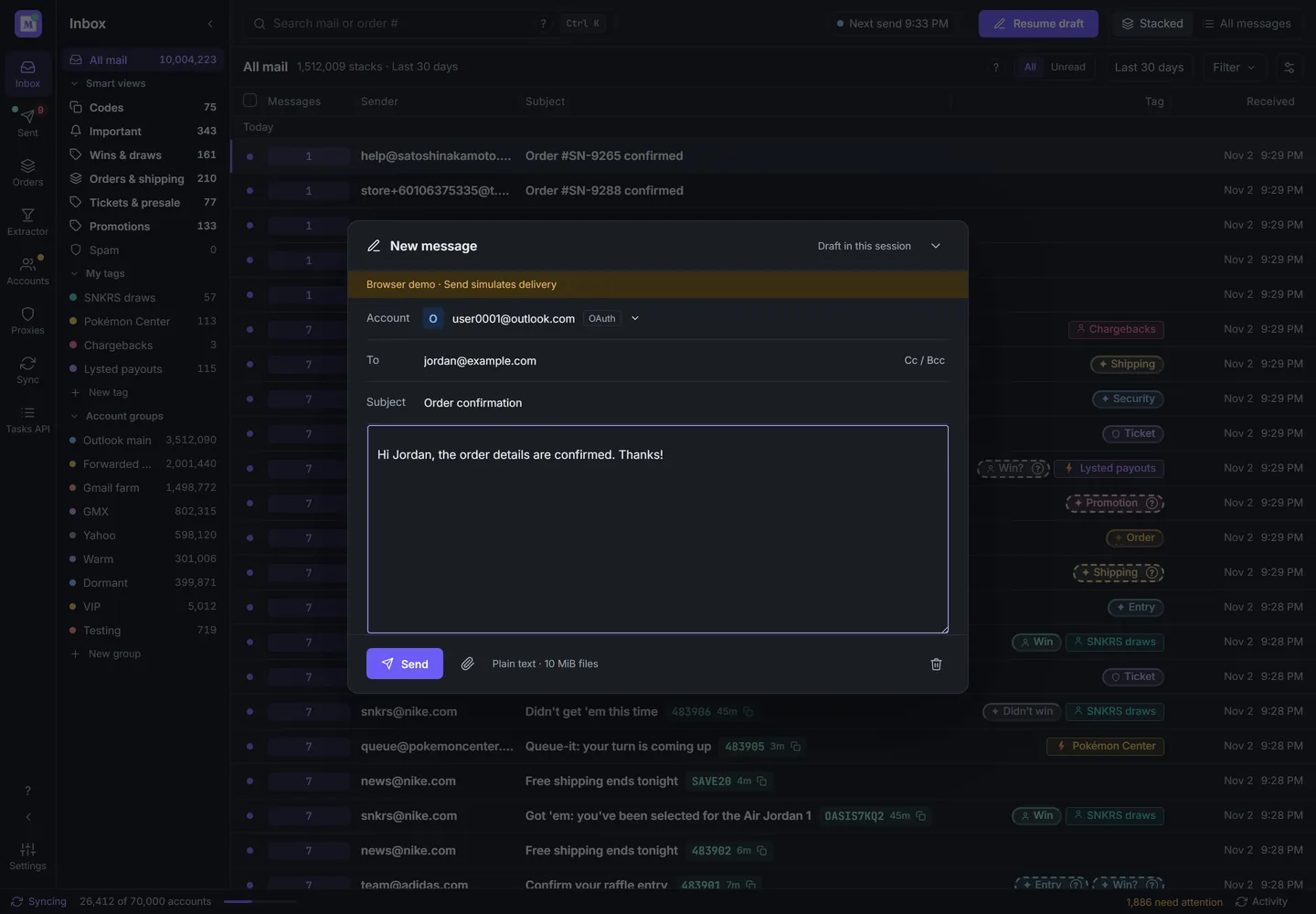
The new message editor. Demo data.

A reply fills in the recipient and subject. Select Show original to read the email you're answering.
| Limit | Value |
|---|---|
| Recipients (To, Cc and Bcc together) | 100 |
| Message text | 1 MiB, plain text |
| Attachments | 10 files, 10 MiB in total, or about 5.8 MB from the web inbox |
| Subject | One line, up to 998 bytes |
Enter plain addresses such as name@example.com, not "Name <name@example.com>".
Check the sending connection#
Compose, replies, Forward and forwarding rules use the account's own sending connection, separate from how Mailman reads its mail. Working incoming mail doesn't prove sending works.
- Open Accounts, open the account, and select the Account tab.
- Under Connection, expand Sending connection.
- For a password account, enter the Sending server, port and encryption, then select Save in the bar at the bottom. Leave Sending server empty to let Mailman pick it from the account.
If your mail is on your own server (for example Postfix and Dovecot behind Roundcube), Mailman can't always guess the sending server. Enter the SMTP host your mail app uses, often mail.yourdomain.com on port 587 with STARTTLS.
Mail sends from your computer's own connection. Tick Use account proxy for sending only if your proxy allows mail ports. It applies to Compose only. Most don't. In the web inbox these settings are read-only. Change them in Mailman on your computer.
If the email didn't send, or you're not sure, see An email didn't send.
In Sent, select a reply to see the text you sent. Replies sent from an older version of Mailman don't keep their text.
In Sent, timestamps update as time passes. Emails less than an hour old show a relative time; after an hour they show the time and day.
What's next
An email didn't send, or I'm not sure it did
Check what happened before you send a second copy.
Resume a draft and check Sent
Where an unsent draft lives, and how to follow emails, batches and forwards.
Reply to several emails at once
Write one reply, fill in values, preview each email and schedule the batch.