 Mailman
Help menu Read, search & codes
Find an email
Search words, narrow by date and group, and use operators like from: and has:code.
Search covers the mail Mailman has downloaded, across every account group unless you pick one.
Search 2 min#
- Select the search box, or press Ctrl+K, and type a distinctive word.
- Type an operator such as
from:to open a filter box. Press Tab to leave the box and keep typing. - Press Enter.
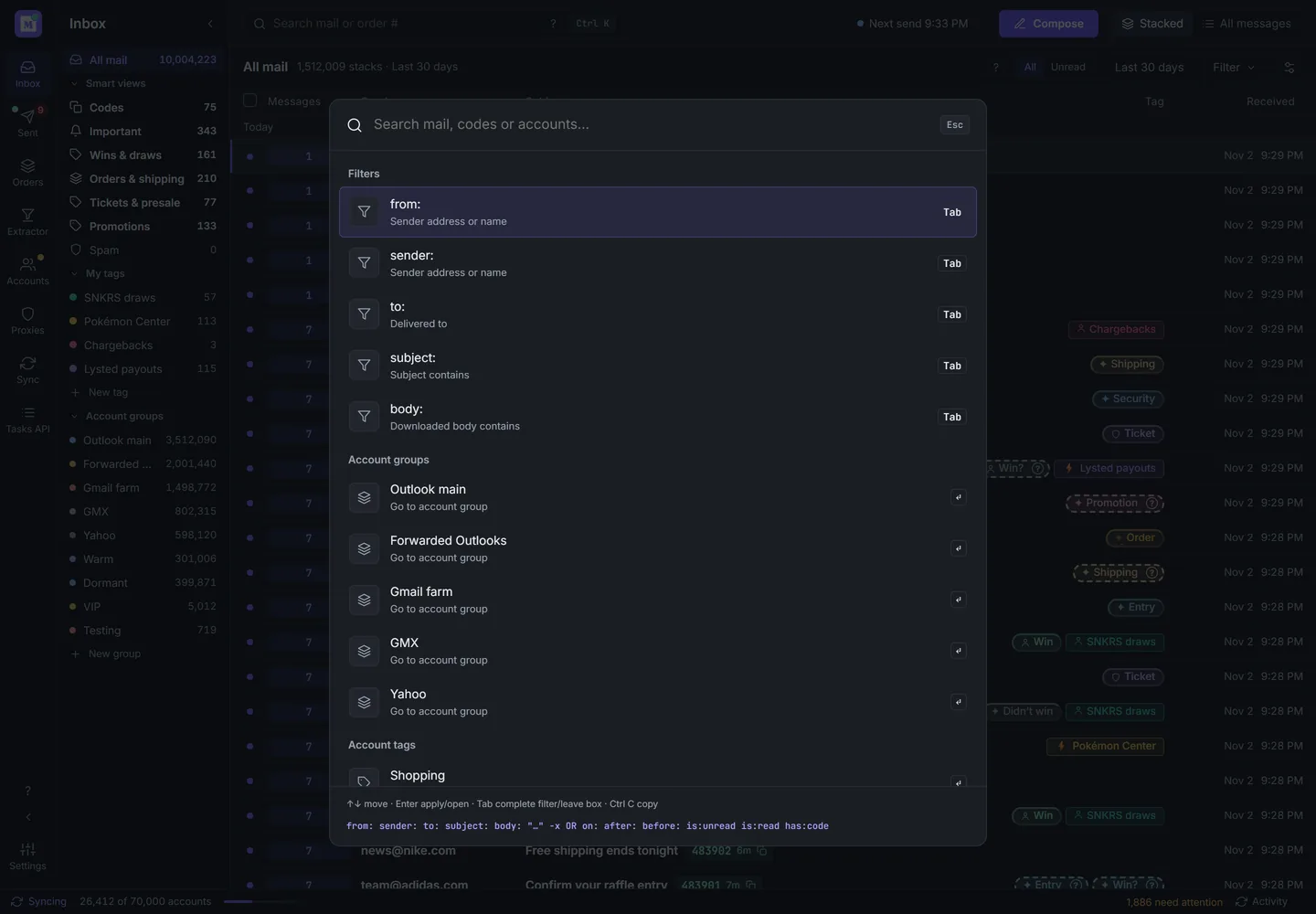
Search with filters. Demo data. - Select the date button, which reads "Any date", or Filter to narrow by date, sender, recipient or Account group.
- Select Search bodies to match text inside emails. It only covers emails whose text is downloaded.

Operators#
| Operator | Finds | Example |
|---|---|---|
from: or sender: | Sender address or name | from:shop |
to: | Delivered-to address | to:buyer@example.com |
subject: | Words in the subject | subject:"early access" |
body: | Words in a downloaded body | body:"secret code" |
on: | A single day | on:2026-10-02 |
after: | Later than that day, which is excluded | after:2026-10-02 |
before: | Earlier than that day | before:2026-10-08 |
is:unread, is:read | Read status | is:unread |
has:code | A stored code, even an expired one | has:code |
tag: | Stacks with that exact tag | tag:"My purchases" |
- before a word or operator | Leaves matches out | -subject:cancelled |
OR | Either side | has:code OR subject:"early access" |
Everything else is required, so from:shop after:10/1 needs both. Words match from their start, and quotes match a phrase. Unknown fields such as has:attachment become plain text.
Dates accept 2026-10-02, 10/2, "oct 2", today, yesterday and weekdays. A weekday means the latest one before today.
If results look wrong#
- "Showing matches among the newest 20,000 candidates" means a search with
is:,has:code,in:ortag:stopped early. Add words or dates to reach older mail. - "Recent mail is still becoming searchable" means search needs a moment. See the status bar.
- "Search is catching up; retrying" fixes itself. "New mail is missing from search; restart Mailman" needs a restart.
- Mail still missing? See An email is missing.
Stacked results hide Security beside a code chip and dim Spam rows. Question labels stay visible. Mouse or pen right-click acts on an unchecked row without changing your selection; on a checked row it acts on all checked rows. Touch long-press enters selection mode.
Search a category or tag#
Opening search from a smart category or custom tag prefills a removable filter chip. For example, search in:promotions nike or tag:"Name With Spaces" nike. Remove the chip to search all mail. Account group scope continues to apply.
Use in:important, in:wins, in:purchases, in:tickets, in:promotions, or in:spam; Wins includes possible wins. Values are case insensitive. Use -in: or -tag: to exclude a category or tag. Search suggestions complete category and custom tag names, quoting names containing spaces.
Rules and “Stack all results” cannot use in: or tag: filters. Remove those chips before creating a rule. In the phone web inbox these operators need an updated Mailman desktop, because search runs on your computer.