 Mailman
Help menu Fix a problem
An account won't sync
Match the status shown on the account to its fix.
An account fails when its email provider turns Mailman away, not when you import it. Fix one account, check that it syncs, then repeat for the rest.
Find the status#
- Open Sync and find the "Not syncing" card, or open Accounts → Needs a fix. To list every account whose latest sync failed, open Accounts and choose Last sync failed in Filter.
- Read the plain-language explanation, then find its status in the table.
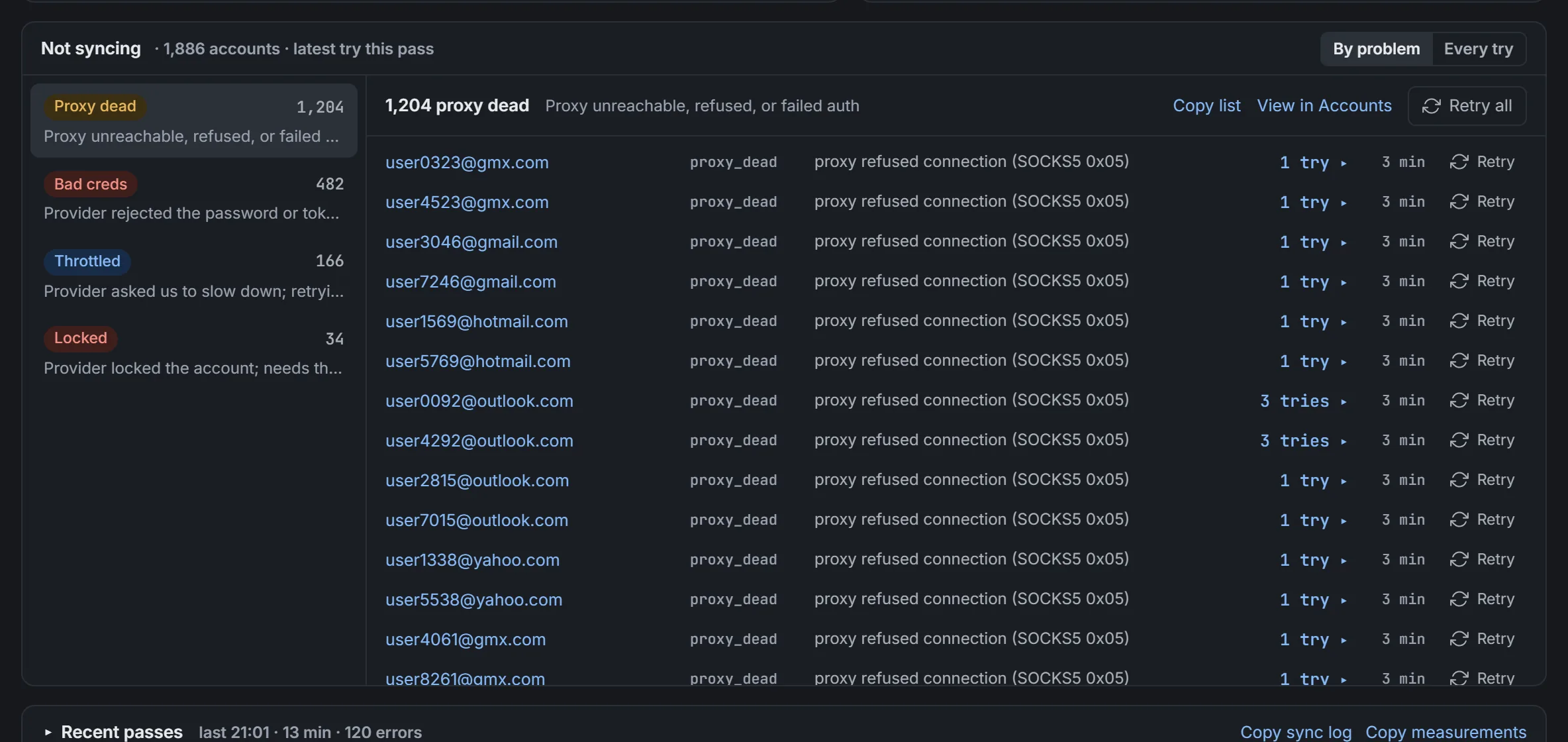
Accounts grouped by status, with Retry all. Demo data.

| Status | What it means | What to do |
|---|---|---|
| Bad creds | Your provider rejected the password or token. | Check the login on your provider's website. Use its app password if it needs one. Under Sign-in & 2FA, select Edit and enter the new password. |
| Not checked yet | Not checked since import or the last credential, proxy or host change. | Select Sync now on the account. Don't import again. |
| Sync failed | The latest try failed without changing the account's status, so it can still read "Ok" or "Not checked yet". The reason is under "Sync failed" in Accounts. If a sign-in has failed since the syncs started failing, the row shows what that sign-in found instead, such as "Wrong sign-in details", with when it happened underneath. | Select Retry in the account's panel. If it keeps failing, match the reason to a row here. |
| Account not found | A sign-in found that Microsoft has no account with this address. Mailman stops syncing it, so it doesn't keep failing. | Check the address for a typo. If it's right, the account was closed or deleted, so remove it. Signing it in again, for example with Browser sign-in, or saving an edit to it starts syncing it again. |
| Throttled | Your provider asked Mailman to slow down. It retries by itself. | Wait. If it keeps happening, lower Per-provider connections under Advanced limits in Settings → Sync. |
| Needs sign-in | The saved permission (token) expired or was revoked. | Select Browser sign-in on an Outlook, Hotmail or Microsoft 365 account. For other providers, enter a new Refresh token under Sign-in & 2FA. |
| Proxy dead | The proxy is unreachable, refused, or failed its login. | Check its host, port, type and login. Replace it with Swap proxy, then test one account. |
| Locked | Your provider locked the account. Only its owner can unlock it. | Unlock it on your provider's website. |
| Rate limited | Your provider signed you in, then refused the mailbox. Your session may have expired, IMAP may be off, or the provider is limiting sign-ins from this connection. Mailman tries again by itself after about 2, 5 and 15 minutes, even when automatic sync is off. The account shows when the next try is, and it isn't counted under Needs a fix while Mailman is still trying. | Wait, or for personal Outlook or Hotmail accounts run Enable IMAP from Outlook tools right away. To avoid connection limits, give the accounts proxies, or choose a saved list under Retry failed syncs on another proxy in Settings → Sync. |
| No mailbox access | You're signed in, but the provider refused access to the mailbox, and the automatic retries didn't get through. Your session may have expired or IMAP may be off. | For personal Outlook or Hotmail accounts, run Enable IMAP from Outlook tools. Otherwise look for a verification or block notice in a browser, or give the account a proxy (or a different one). Sync now starts the retries again. |
The explanation appears before any provider message, both here and on the account. Hover over it for the original diagnostic text. In Sync, Every try and Copy log keep the original details for troubleshooting.
"Password sign-in turned off" as the reason means Microsoft no longer accepts this account's password for mail apps. On an Outlook, Hotmail or Microsoft 365 account, open Outlook tools and select Request login or Browser sign-in so Mailman signs in without the password.
"Sync didn't finish" means the attempt failed without a more specific status. Retry the account; if it keeps failing, copy the sync log for support.
Check that it worked#
- Select Retry next to the account in the "Not syncing" card or in its panel, or Sync now on the account.
Fix a failed sign-in#
Request login, Browser sign-in, Enable IMAP, Enable realtime and Reset password run in the sign-in queue. A successful OAuth sign-in replaces password sign-in and clears the old status, so you don't import the account again.
- Open the Sign-in queue from the Accounts toolbar, or from Activity in the status bar.
- Select a "Failed" or "Needs attention" row to read why. Select Copy error to keep the details.
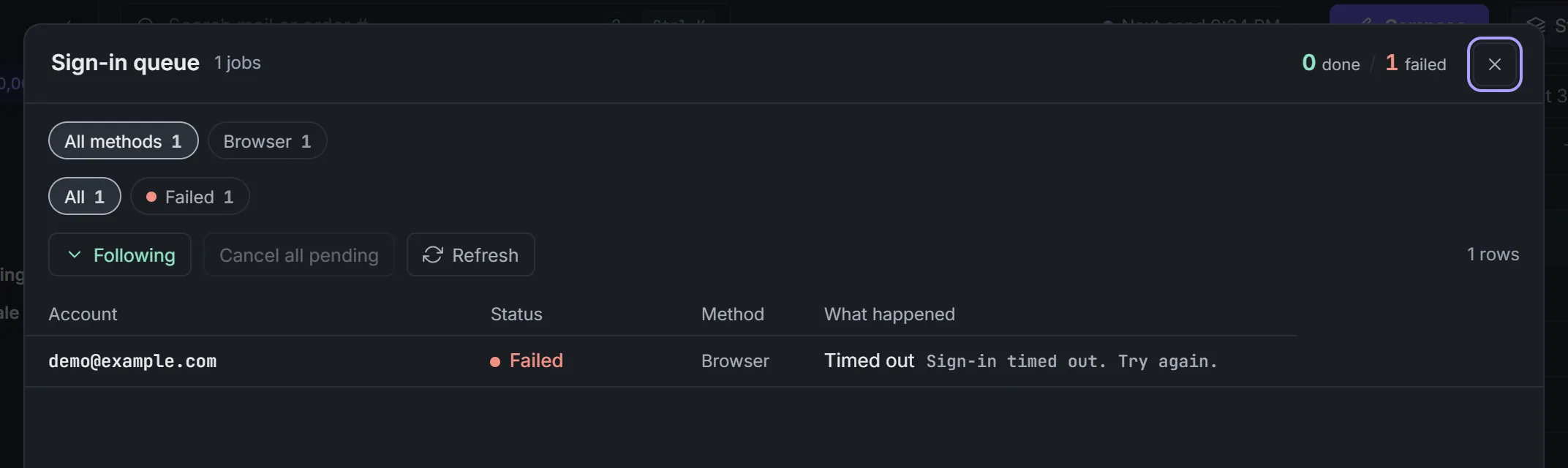
A browser sign-in that timed out. Demo data. - Select Retry to queue it again, or Continue to open a visible sign-in on your computer and finish any captcha yourself.

In the web inbox you can read the queue, but Retry and Continue work only on your computer.
Reset a lost Outlook password#
When the password you have for an Outlook or Hotmail account no longer works and you can't sign in any other way, Reset password sets a new one. It proves identity with a code sent to the account's code inbox, sets a new Microsoft password, saves it, then signs in. It asks you to confirm first, since it changes the account's password at Microsoft.
- On the account, select Reset password, or select accounts in Accounts and choose it from Actions or Outlook tools.
- Confirm. Mailman queues it like any other sign-in; watch it in the Sign-in queue.
The account needs a code inbox set (under Code inbox & recovery…) so Mailman can read Microsoft's emailed code, and a recovery email on file. It works on your computer only, for personal Outlook and Hotmail accounts.
If the queue says Microsoft requires a CAPTCHA for password recovery that Mailman couldn't read, finish verification on Microsoft's password reset page, then update the saved password under Sign-in & 2FA and sign in again.
Still stuck?#
- "Your email accounts need attention" on the first Inbox card: select Fix accounts.
- "Could not start syncing" after an import: your accounts are saved. Open Sync instead of importing again.
- Anything else: send logs to support, with no passwords, tokens or proxy logins in your note.
For Proxy dead accounts, open Proxies and use the proxy swap notice to swap their proxies from a saved list.