 Mailman
Help menu Get started
Install Mailman and sign in
Download Mailman for Windows or Mac, then sign in once to activate this computer.
Works in: Windows app5 minUpdated 2026-11-21
Download Mailman from your Mailman account, then sign in once to activate this computer. Signing in unlocks the app. It doesn't add your email accounts.
Install 2 min#
- On app.getmailman.app, enter the email you bought Mailman with and select Continue with email.
- Open the link in the email you receive, or enter its code and select Sign in with code.
- If you aren't in the Mailman Discord yet, the page offers it first. Select Link Discord and approve in Discord to join, or select Skip for now.
- Under Mailman for Windows, select Download for Windows. On a Mac, the page shows Mailman for Mac and Download for Mac.
- Run the installer. It needs no admin rights, and Mailman keeps itself up to date afterward.
- Open Mailman from the Windows Start menu if it doesn't open by itself.
On a Mac#
Mailman runs on macOS 13.3 or later, on Apple silicon and Intel.
- Open the downloaded
.dmgand drag Mailman into Applications. - Open Mailman from Applications. macOS says Apple could not verify it.
- Open System Settings → Privacy & Security, scroll to Security, select Open Anyway, then confirm.
Keep Mailman in Applications. It can't update itself from the disk image or Downloads, and it offers to move itself there.
Sign in 2 min#
- In the "Welcome to Mailman" window, enter your purchase email in Email address.
- Select Send email code. A six-digit code arrives in that inbox.
- Enter the code in Email code, then select Verify and sign in.
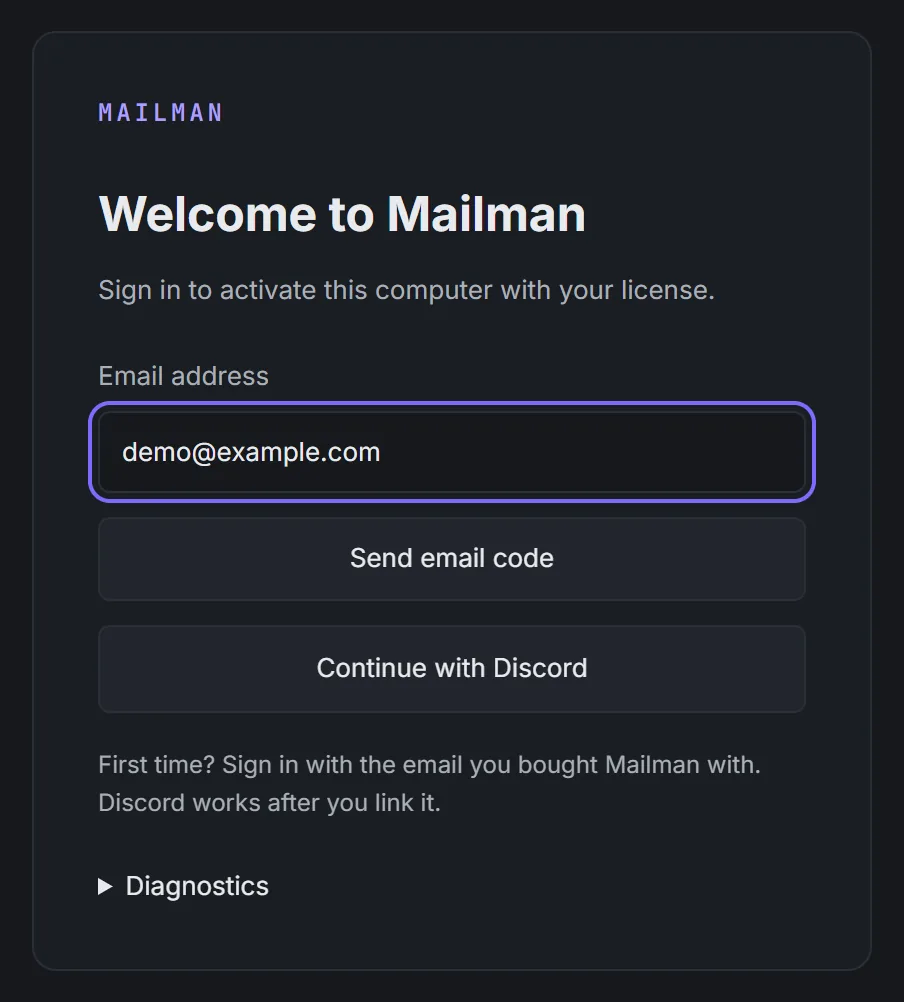
The sign-in window. Demo data.

To use another email, select Use another email / resend. Continue with Discord works after you link Discord to your Mailman account; finish in your browser, then return to Mailman. To sign out later, open Settings → Mailman account and select Sign out.
If something went wrong#
| You see | Do this |
|---|---|
| "No download is available yet — check back soon." | Your account page has no installer yet. Try again later |
| "Could not check for the latest version." | Check your connection, then select Retry on that page |
| "Mailman isn't available for Mac yet" | No Mac build is published yet. Try again later, or select Download for Windows on a PC |
| "Mailman installs on a computer" | You opened the download link on a phone. Open it on your Windows PC or Mac |
| "Apple could not verify Mailman" | Expected on first launch on a Mac. Follow the steps under On a Mac |
| "No license found" | That email has no usable license. If it is the wrong email, select Use a different account |
| "All machine slots are in use" | Select Manage computers, remove one you don't use, then select Retry activation |
| "MSVCP140.dll was not found" or "VCRUNTIME140.dll was not found" when Mailman opens | Your Windows (often a fresh Windows Server) lacks a runtime that older Mailman versions needed. Download and run the latest installer. If the message remains, install Microsoft's Visual C++ Redistributable (x64) from Microsoft's site, then open Mailman again |
More fixes are in sign-in and license problems.