 Mailman
Help menu Add & manage accounts
Organize, find and repair accounts
Search, filter and edit accounts, one at a time or in bulk.
Use Accounts to find accounts, act on many at once, and open one to edit or repair. The web inbox does the same, except for credentials, 2FA codes, connection settings and sign-in, which need your computer.

Find accounts#
Type in the search box at the top. It searches accounts, not mail. A plain word matches an email, recovery email or alias.
| Type | It finds |
|---|---|
email:outlook.com | The account's own address only, not aliases |
alias: or recovery: | Only aliases, or only recovery emails |
note:shipping or field:vip | Notes, or custom field values |
status:proxy_dead group:Hotmails | A status (code, label, or sign-in verdict — type status: for suggestions) and a group name |
provider:outlook proxy:10.0.0.1 | A provider and a proxy host |
Filter offers the same choices as a menu, plus Sync mode, Last sync failed, Tags, Has a 2FA secret and Has notes. Chips under the toolbar remove one filter each. If you see "No accounts match these filters.", select Clear filters before you decide an account was never added.
To check an outside list, select Filter, then Find accounts from a list…. Paste addresses or aliases and select Search. You see "N accounts found · N via alias · N not found".
In the desktop list, columns fold as space runs out to keep the account email readable, including when its panel is open. Your View options stay saved.
See which accounts failed to sync#
Status shows each account's latest result. An account whose latest sync failed reads "Sync failed · 4 min ago" in red, with the reason underneath. This holds even when its stored status is still "Ok" or "Not checked yet". If a sign-in also failed after the syncs started failing, the row leads with what that sign-in found, such as "Wrong sign-in details". When it happened and the sign-in's own words go underneath. Hover over the row for the times and the sync error. A status that already names the problem, such as "Bad creds" or "Account not found", keeps its label and shows the reason underneath. Last sync keeps the last time the account synced well, or "never".
"Account not found" means a sign-in found no Microsoft account with that address. Mailman stops syncing the account until you sign it in again or edit it. See An account won't sync.
An account's History tab lists each event with its own words after the label, such as "Sign-in failed" followed by "Microsoft account does not exist.". Hover over a line for the whole text. Technical details below the list keeps the original wording.
- Select the Last sync failed chip above the tabs, which counts them, or choose Last sync failed in Filter.
- Open an account to read the reason in its panel.
- Select Retry, or fix the cause first with An account won't sync.
An account leaves the list when it next syncs well. The list also holds accounts that failed in an earlier pass and haven't synced since. The "N failed this pass" count in the status bar opens only the accounts that count covers, under the chip "Failed this pass ×". If Mailman on your computer is out of date, the list covers only the latest sync pass and Last sync shows "—" when it can't tell.
Act on many accounts#
Select rows with their checkboxes, then select Actions or press T. The checkbox in the list header selects every account in the list, as in the inbox; with any selected, it clears them. With nothing selected, Actions acts on the whole filtered view. Its title names the target, such as "Actions for 12 selected accounts". For a whole view of more than 50 accounts, Mailman asks before it syncs, signs in, hides or shows them.
To clear the selection, press Esc or click anywhere outside the account rows, such as the empty space below them, the sidebar or the account panel. Clicks on the toolbar and the selection bar keep it.
To give someone read-only access, select accounts and then Share… in the selection bar. You can also right-click a group, a tag or the selected accounts and select Share read-only…. Right-click one account for Share codes read-only…. An eye icon marks shared accounts and tags, and Shared with in an account's panel names who. Sharing explains the rest.
Moving to a group can replace current groups. Hide from inbox keeps syncing but removes the mail from your Inbox. Pause sync stops checks. Pause, hide and shared edits offer Undo.
The desktop row menu offers Pause sync for running accounts and Resume sync for paused accounts; mixed or large selections offer both. Outlook sign-in choices are grouped under Sign in. A single account from another provider offers Test sign-in directly. Sign-in actions are disabled and labeled "on your computer" in the web inbox. Use Swap proxy… to change proxy assignments.
Edit one account#
- Select an account to open its panel, with the tabs Account, Mail and History.
- Select Edit… in the row menu, or press E. The saved credentials appear.
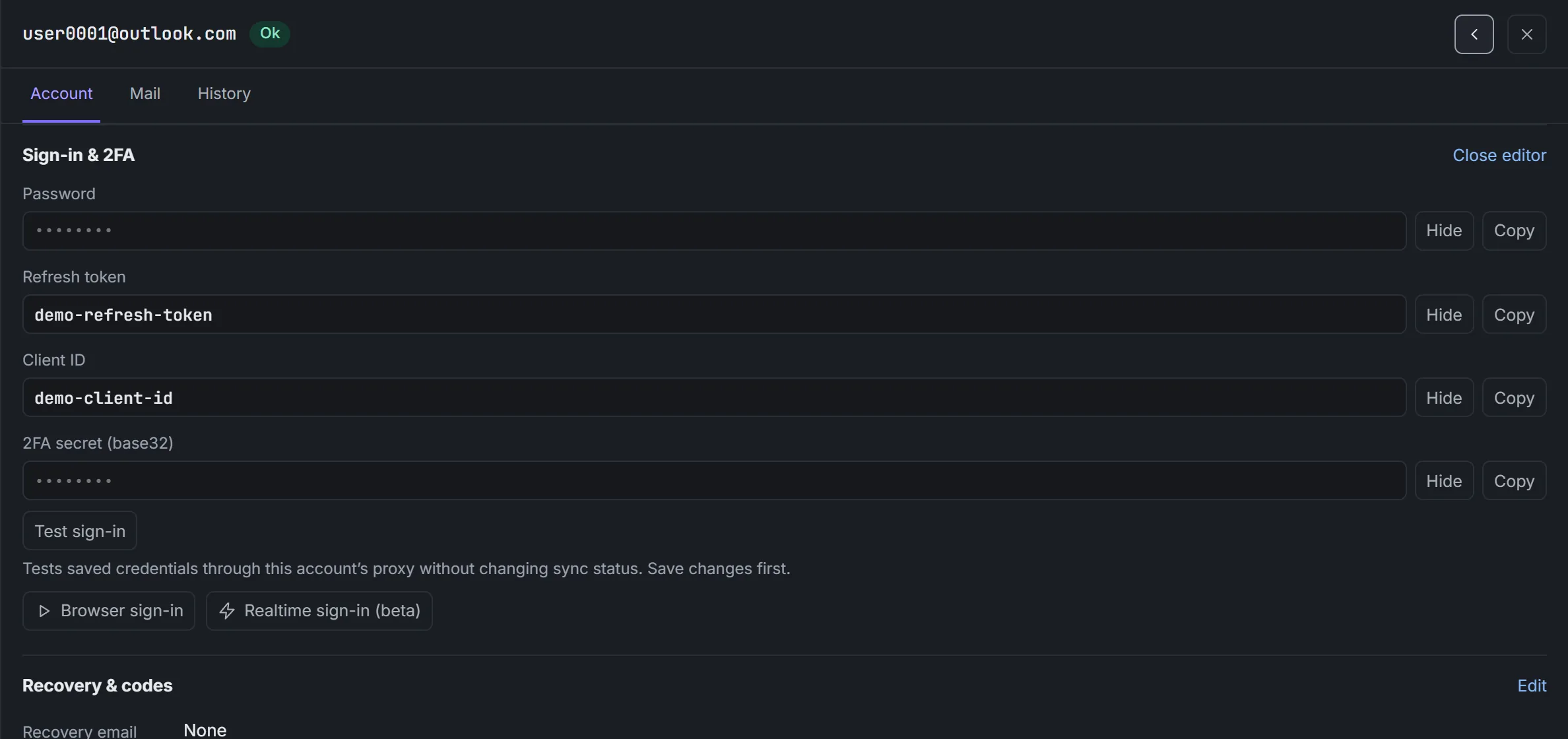
Editing one account on the Windows app. Demo data. - Change what you need. Each section has its own Edit.
- Select Save, or press Ctrl+S. Discard drops your changes.

For several accounts, Edit… opens a shared editor. Tick the fields to change, then select Apply to N accounts. Undo works for 10 minutes. The web inbox always uses this editor.
| Section | What you can do |
|---|---|
| "Connection" | Change the provider, proxy and IMAP server. Pause or resume sync. Choose extra folders. Sending connection sets the outgoing server for Compose, replies and Forward, and saves with the rest of the account |
| "Sign-in & 2FA" | Change passwords and tokens. Select Test sign-in. Copy the current 2FA code, shown with its seconds left |
| "Recovery & codes" | Set the recovery email and the code inbox with Code inbox & recovery… |
| "Aliases" | Filter and copy aliases with Copy all, or edit them one per line |
| "Notes, tags & custom fields" | Add notes, tags and fields you can search with note: and field:. To remove a tag, select it under "Current tags" |
How do I sync extra folders?
Inbox and Junk always sync. In "Connection", select Edit, then Choose folders…. Tick the extras and select Save. Avoid All Mail: it duplicates messages from other folders. Removing a folder stops future syncs and keeps the mail already stored.
What do Mail and History show?
Mail lists the account's recent messages. Open one, then select Back to account. History lists what happened, newest first, and shows a repeat as "×3". Filter it with All kinds, select Copy to paste it into a report, or open Technical details.
The Healthy percentage counts OK accounts out of checked accounts only, with "of N checked" beneath it. It shows "—" if none have been checked. Not checked yet is a separate count and filter: these accounts do not add to Needs a fix or account warning dots. This status can follow an import or a credential, proxy or host change, even if the account synced before. Select Not checked yet, then Sync these to check them.
When an account needs repair, open Needs a fix for its fix buttons, or see An account won't sync.
Overview shows the health proportions and accounts not checked yet. Open Needs a fix for the problem breakdown and fixes.
For bad passwords, Update passwords… in Needs a fix or an account panel opens import with password updates enabled. Paste the updated account list to replace matching passwords and tokens without duplicating accounts. This requires Mailman on your computer.
Pause sync stops checks; in the Paused tab it reads Resume sync. For Outlook and Hotmail accounts, Outlook tools offers individual tools — Request login, Browser sign-in, Enable IMAP, Enable realtime, Disable realtime and Reset password — without forcing Realtime on.
Actions groups each action with a one-line description. With nothing selected it warns how many accounts it will run on.
Name a group Parent | Child, or right-click a group in Accounts and select New sub-group…. The Inbox and Accounts sidebars show it under Parent. In Inbox, expand a parent to see its children. A real parent group shows only its own mail count and selects only its own accounts. A parent created by a name prefix only expands its children.
Right-click an unchecked account with a mouse or pen to act on that row without changing your selection. Right-click a checked row to act on all checked rows. On a phone, press and hold to enter selection mode.
Deleting an unchecked account through its right-click menu keeps other checked accounts selected. Deleting checked accounts removes them from the selection.
To copy accounts to another computer or to AYCD, right-click the selected accounts or a group and select Export accounts…. See Export accounts.
Stay connected#
Stay connected gets new mail within seconds instead of on the next sync. To turn it on for an account:
- In the account's Connection section, select Edit.
- Check Stay connected and read the note under it about this provider's connection limits.
- Select Save.
Uncheck it and save to turn it off. The Connection section then shows "On · Connected", "Waiting for the proxy" or "Off".
It works only while Mailman is open on your computer, for up to 50 accounts. Outlook and Microsoft 365 accounts signed in with OAuth use Realtime in Settings → Sync instead. Change it in Mailman on your computer; the web inbox shows the setting but can't change it.
"Waiting for the proxy" means sync is using the account's proxy, so the connection pauses for a minute, then reconnects. See provider connection limits before turning it on for many accounts.